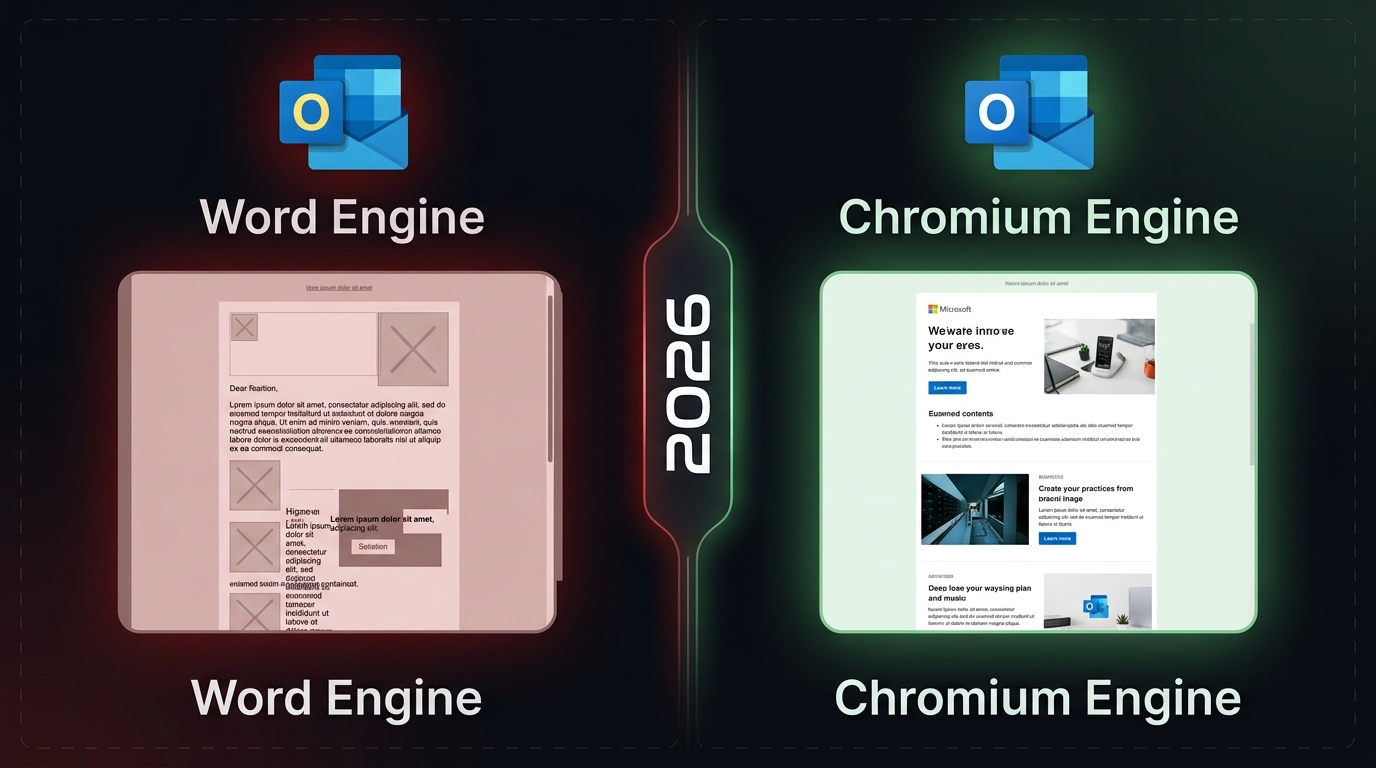
You tested the email. It looked fine. You sent it. Half your enterprise contacts are staring at a broken layout, a missing image, or text that has decided to live somewhere it was not invited.
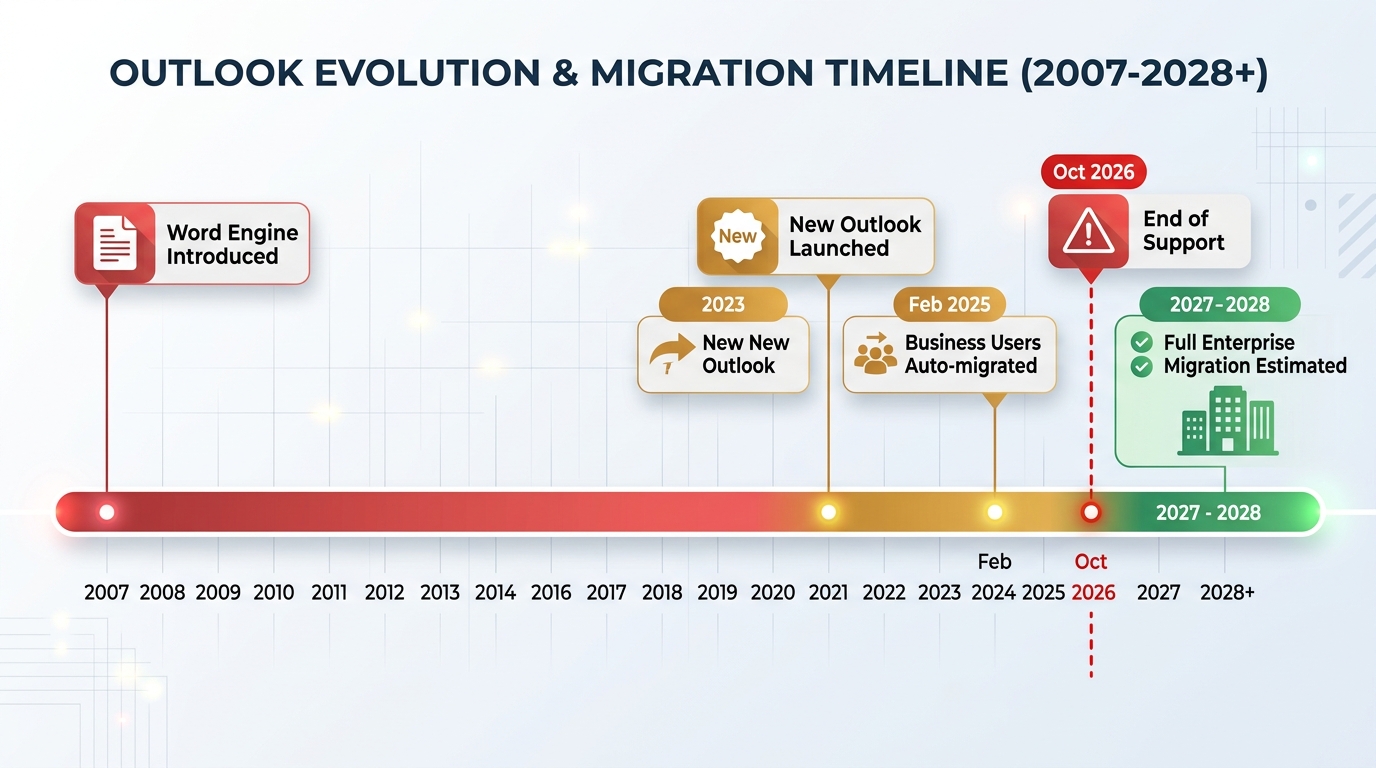
This is the Outlook problem. It has existed since 2007, when Microsoft replaced Internet Explorer with Microsoft Word as Outlook's rendering engine. That decision has persisted across every desktop version since — 2010, 2013, 2016, 2019, 2021, and Microsoft 365 for Windows — and it was never designed to render modern HTML email.
In 2026, the situation has changed. But not in the way most email developers hoped.
Outlook Is Four Rendering Engines, Not One
Before diagnosing what's breaking, you need to know which Outlook you're diagnosing. The same brand name covers four meaningfully different rendering environments:
| Version | Rendering Engine | CSS Support | Status |
|---|---|---|---|
| Classic Outlook 2007–2021 | Microsoft Word | Very limited | End of support Oct 2026 — still in use |
| New Outlook for Windows (2023+) | Chromium / WebView2 | Good — but post-render bug | Current default — growing adoption |
| Outlook.com / Microsoft 365 web | Browser engine + CSS sanitisation | Good — own quirks | Active |
| Outlook Mac / Mobile | WebKit / native | Good | Active — fewest issues |
The engine that causes 95% of email rendering problems is Classic Outlook on Windows. The core issue traces back to 2007, when Microsoft replaced Internet Explorer with Microsoft Word as Outlook's HTML rendering engine. Word was designed for print documents. It has no concept of responsive layout, CSS animations, modern box model, or web fonts. It never did.
What Classic Outlook Actually Breaks — and Why
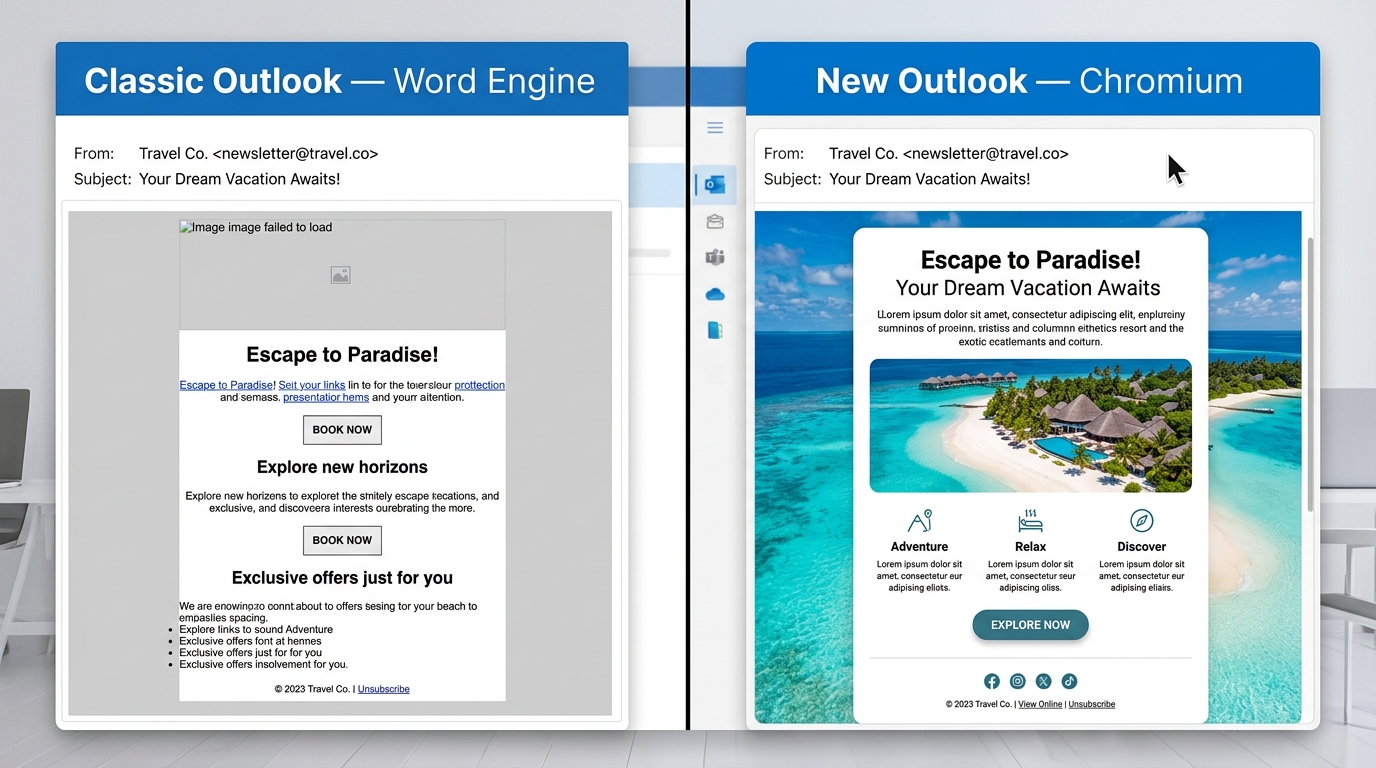
Classic Outlook uses the Word rendering engine, which ignores flexbox, grid, border-radius, background-image, and dozens of CSS properties. These aren't optional CSS features — they're the foundation of modern email design. Here's what breaks, and what you use instead:
CSS Background Images — Use VML
Classic Outlook simply ignores background-image in CSS. The workaround is VML — Vector Markup Language — a Microsoft-proprietary format from the late 1990s that exists nowhere else in modern web development. You write VML inside MSO conditional comments:
div { background-image: url(hero.jpg); }
/* What actually works in Classic Outlook: */
<!--[if gte mso 9]>
<v:rect xmlns:v="urn:schemas-microsoft-com:vml"
fill="true" stroke="false" style="width:600px;height:200px;">
<v:fill type="frame" src="hero.jpg" color="#2D6A4F" />
</v:rect>
<![endif]-->
Layout — Tables Only, Not Divs
For Word-based Outlook (2007–2021), tables are the only reliable layout mechanism. Flexbox and grid are completely ignored. div-based layouts collapse or stack incorrectly. Every row, column, and container must be a <table>. Inline styles only — class-based styles are inconsistently applied or stripped entirely. It is, without question, the most regressive development environment in active use anywhere in 2026.
Padding and Margins — Inline Only, and Unpredictable
Classic Outlook outright removes margin and padding properties applied to images and div tags. Padding on table cells works. Padding on most other elements does not. The fix is consistent use of cellpadding and cellspacing on table elements, alongside inline style attributes on td tags rather than on block elements.
New Outlook: Better — But Not Problem-Free
The New Outlook uses a Chromium-based rendering engine and is essentially the same as Outlook.com. It supports flexbox, media queries, background images, border-radius, web fonts, and modern CSS. On paper, this is the end of the Outlook problem.
In practice, there is a catch that most articles are not yet covering.
⚠️ Documented Bug — New Outlook Post-Render Style Rewrite
New Outlook for Windows is running a post-processing step after rendering — likely modifying the DOM or rewriting styles — which can cause layouts or CSS to break. Customer.io has documented this: your email can look correct for a fraction of a second in the preview pane, then break as the post-processing step fires.
The practical defence is to keep layouts as simple as possible. Single-column designs are almost never affected. Complex multi-column layouts with intricate inline styles are the primary victims. Favour single-column layouts, use inline images instead of background images where possible, and apply consistent border-radius values on all sides. Less complexity means less exposure to this post-render rewrite.
There is also a critical point for developers migrating away from Classic Outlook workarounds: New Outlook does not support MSO conditional comments — they are treated as regular comments and ignored. The VML and ghost table code you wrote specifically for Classic Outlook using <!--[if mso]> conditional blocks simply disappears in New Outlook. It is hidden, not rendered. This is actually useful — it means well-structured Classic Outlook fallbacks are invisible in New Outlook rather than broken. But it also means you cannot use MSO conditionals to target New Outlook specifically.
October 2026: End of Support ≠ End of Usage
Microsoft plans to end support for the Word-based desktop versions in October 2026, marking the end of a problematic era for email developers.
Here is the part that matters for how you code right now: the new client lacks features that enterprise IT depends on, including VBA macro support, COM add-ins, and PST file support, which means Classic Outlook with its Word engine will remain the enterprise default through at least 2027.
End of support means Microsoft stops releasing security patches. It does not mean enterprise IT removes it from every machine on October 14th. The installed base of older Outlook versions will remain significant until 2028–2029 in conservative business environments that delay system updates.
October 2026 is the year you start retiring Classic Outlook workarounds — not the year you finish. The right response is to audit your list's Outlook version breakdown now and retire legacy code based on your own data, not Microsoft's deadline.
The Coding Strategy for 2026
Given the transition period, the only defensible approach is to code for both simultaneously and use Progressive Enhancement to layer in modern features where supported.
The base layer: Table-based layout, inline styles throughout, no flexbox, no grid, no CSS background images. This renders correctly in Classic Outlook, everywhere else, and acts as the fallback for every client.
The enhancement layer: Use MSO conditional comments to hide elements from Classic Outlook while showing them to Chromium-based clients. Use max-width and min-width for responsive behaviour on Chromium clients. Add border-radius for clients that support it — it degrades gracefully to square corners in Classic Outlook.
Gmail 102KB limit: Keep your full HTML under 102KB. Gmail imposes a hard limit — any email whose HTML exceeds 102KB gets clipped, showing a "[Message clipped] View entire message" link. Table-heavy Classic Outlook fallback code is verbose. Monitor your compiled HTML size after every significant template change.
Testing: Litmus and Email on Acid both provide Classic Outlook and New Outlook preview renderings. Test both in every release cycle, not just on send day. The rendering difference between Classic 2016 and New Outlook on the same content is often significant enough to require separate review.
Key Takeaways
- Outlook is four rendering engines in 2026 — Classic (Word), New Outlook (Chromium), Outlook.com (browser), Mac/Mobile (WebKit).
- Classic Outlook (2007–2021) uses Microsoft Word — no flexbox, grid, border-radius, or CSS background images.
- New Outlook uses Chromium but has a documented post-render style rewrite bug — keep layouts simple.
- MSO conditional comments are ignored (treated as regular comments) in New Outlook — VML is invisible, not broken.
- Microsoft ends Classic Outlook support October 2026 — enterprise users will remain on it through 2027–2028.
- 60–70% of business users were still on Classic Outlook as of early 2026 — it is not gone yet.
- Gmail clips HTML over 102KB — table-heavy Classic Outlook fallback code adds significant weight.
- October 2026 is when you start retiring workarounds — based on your list data, not the deadline.
Frequently Asked Questions
<!--[if mso]> blocks are harmlessly invisible in New Outlook — not rendered, not broken. However, it also means you cannot use MSO conditionals to target New Outlook specifically.