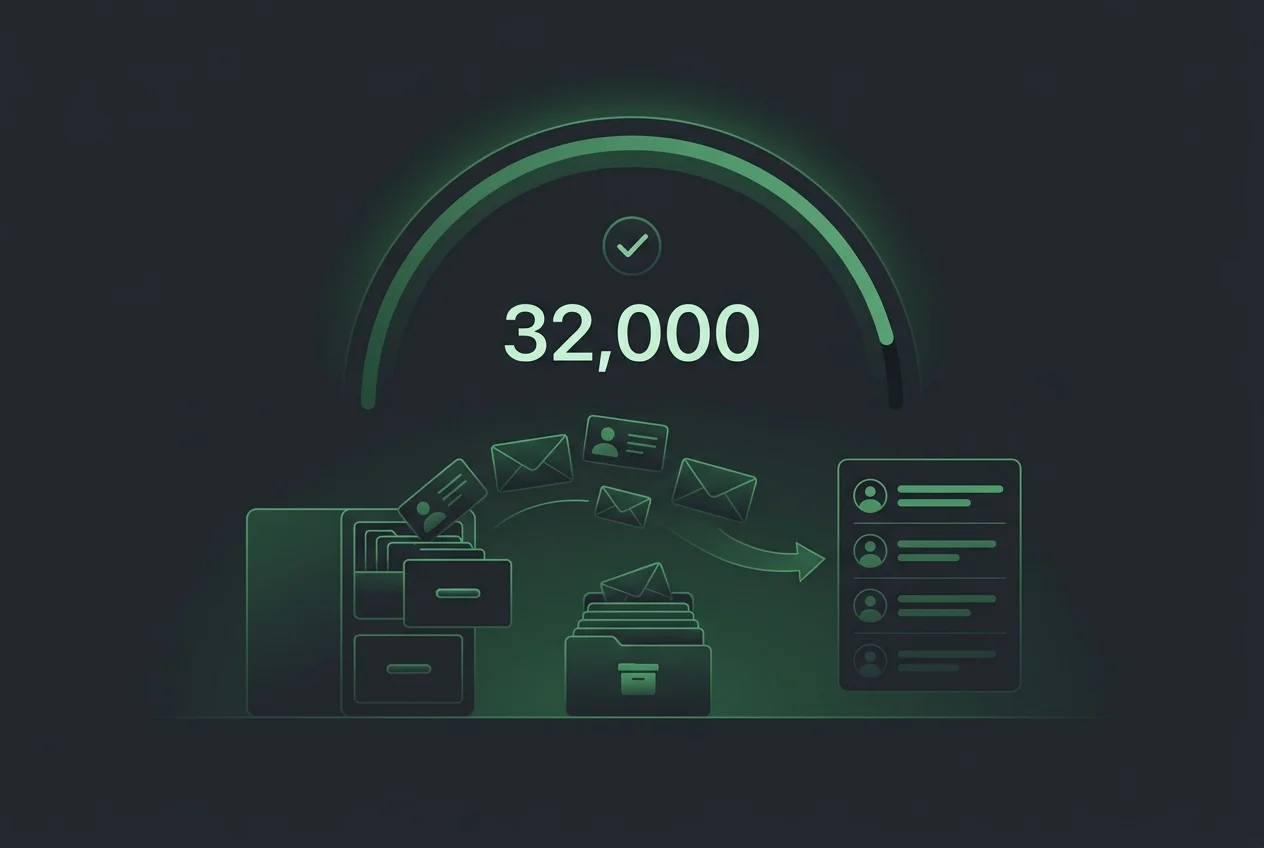
The call came in around the time most people are winding down for the evening. My client had confirmed a trip abroad. I had done my job — archived 32,000 contacts from their Mailchimp audience. Clean, tidy, ready for their return.
Then the trip was cancelled. The client was staying. The contacts needed to come back.
I opened Mailchimp and started looking for the filter. The one that would let me sort the archive by date and restore just the contacts I'd archived that day. It wasn't there. Because it doesn't exist.
The Problem: 67,000 Contacts in an Archive With No Date Filter
Mailchimp's archive is a flat list. There's no date column. No "archived on" filter. No way to say show me only the contacts archived today and then restore them as a group. The UI gives you a search box and a list. That's it.
The situation I was looking at:
Restoring them manually, one by one, wasn't a conversation worth having. Even at an optimistic rate — find, click, confirm, repeat — restoring 32,000 contacts would take days of continuous effort. And there was no way to tell Mailchimp's UI which 32,000 to restore without touching the other 35,000.
The Mailchimp interface is built for marketers. The Mailchimp API is built for engineers. When the problem is at scale, the interface runs out of runway very quickly.
I closed the UI. Opened the API documentation. And started writing PHP.
The Solution: Date-Filtered Batch Unarchiving via the Mailchimp API
The Mailchimp Marketing API stores a last_changed timestamp for every contact. When a contact is
archived, that timestamp updates. Which meant I could do something the UI couldn't: query the archive
specifically for contacts whose last_changed value fell within the date window of my archiving
action.
Find every contact archived on that specific date. Restore only those. Leave the 35,000 pre-existing archived contacts completely untouched.
The mechanism I chose was the Mailchimp Batch API. Instead of making 32,000 individual API calls — which would hit rate limits immediately — the Batch API allows up to 500 operations per request. Mailchimp processes them server-side and returns a batch ID. You poll the batch ID for status. When processing finishes, you submit the next batch. The architecture is designed for exactly this kind of operation.
The script logic was straightforward in principle:
1. Query archived contacts with last_changed between 2026-05-14T00:00:00+00:00 and
2026-05-14T23:59:59+00:00.
2. Group contacts into batches of 500.
3. Submit each batch as a PATCH request to update status from archived back to
subscribed.
4. Poll batch status. When complete, submit the next batch.
5. Repeat until the queue is empty.
The Dashboard: Visibility While the Script Ran
Running a script that touches 32,000 records without knowing what's happening is not something I was comfortable with. I needed to see it working — or catch it if something went wrong. So alongside the script I built a simple live dashboard: batch progress, success counts, hard bounce detection, error reporting, and a running tally of contacts restored. It refreshed every 8 seconds.
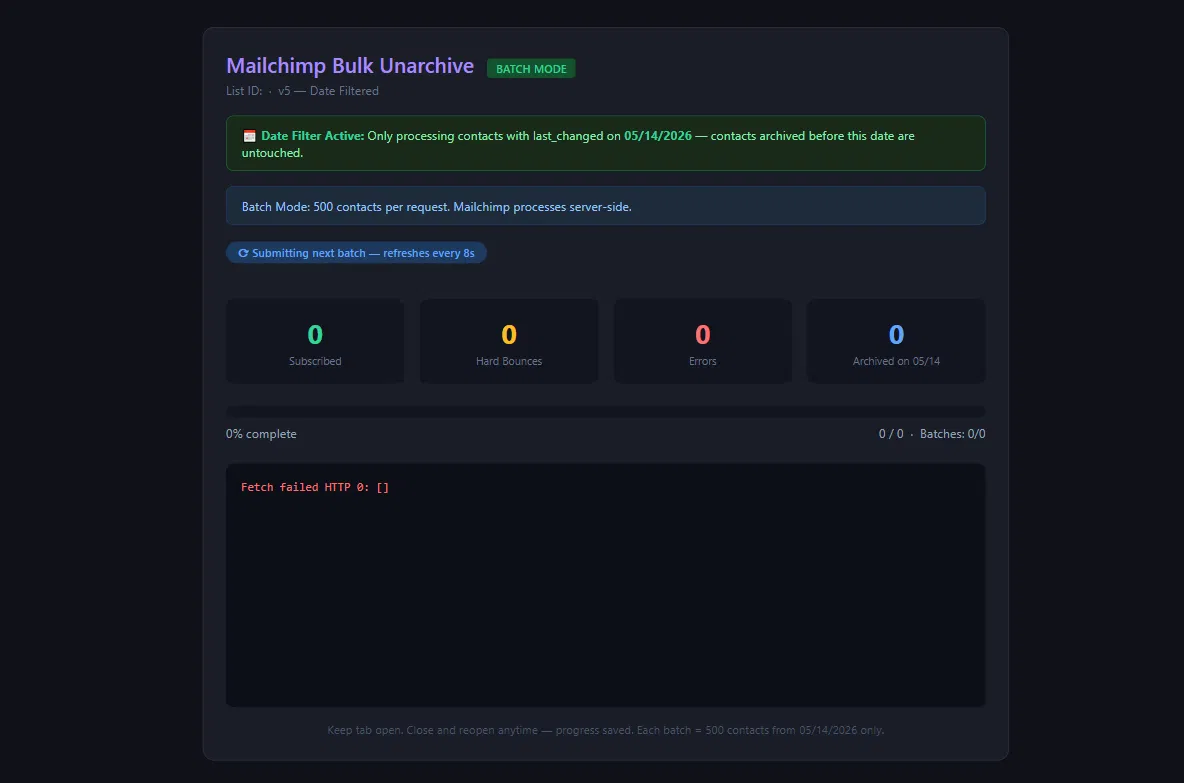
The date filter was the critical safeguard. It's visible right at the top of the dashboard: "Only processing contacts with last_changed on 05/14/2026 — contacts archived before this date are untouched." That single constraint was what separated a precise restoration from a disaster. Without it, the script could have unarchived contacts that the client had deliberately archived months or years earlier — contacts that were supposed to stay out of the audience.
The Configuration: API Key, Audience ID, and Date Range
Before the script runs, three values need to be set in the config block at the top of the PHP file: the Mailchimp API key, the Audience ID (also called List ID), and the date window for the filter.
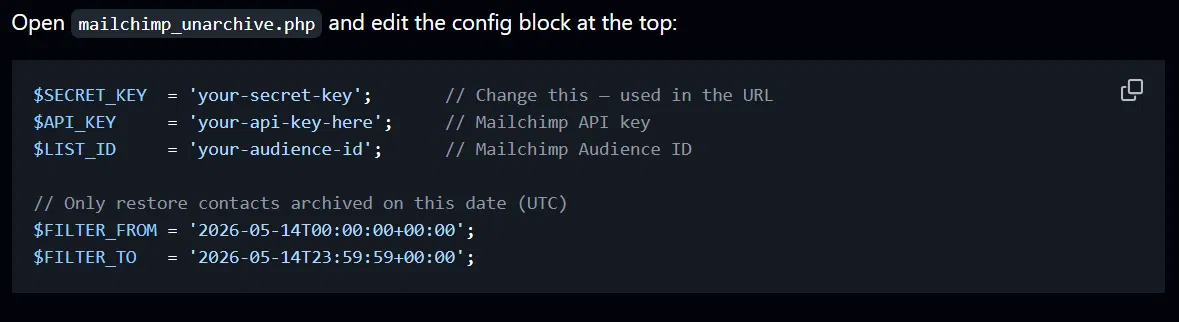
$API_KEY, $LIST_ID, and the UTC date range for the filter.
Only contacts whose last_changed falls within $FILTER_FROM and
$FILTER_TO will be processed.
The date filter uses full ISO 8601 UTC timestamps, which is how Mailchimp stores and returns
last_changed values. Setting both ends of the window ensures the script captures exactly one day's
worth of archiving activity — nothing before, nothing after.
Now, about those config variables. And specifically about the API key.
⚠️ A Word for Developers and Vibe Coders: Never Hardcode an API Key
⚠️ Security Warning — Read This Before You Copy Any Config
In my script, I hardcoded the Mailchimp API key directly in the PHP file. I did this deliberately, knowing it was a temporary tool I was running for a few hours on a private server and then discarding. I do not recommend this for any other situation. Ever.
Here's what happens when a developer hardcodes an API key and that code ends up in the wrong place:
- Git repository exposure. If the file is committed to a public or even a private
repository without proper
.gitignorerules, the API key is permanently in your version history. Even if you delete it in the next commit, it exists in the git log. GitHub's secret scanning catches some of this — but not always before damage is done. - Shared hosting risk. On shared servers, file permissions matter. A hardcoded key in a PHP file that has world-readable permissions is accessible to anyone with shell access to that server.
- Logs and error outputs. PHP error messages and server logs can include variable contents. A key hardcoded in a config block that triggers an error may end up in a plain-text log file.
- Code sharing. A developer sends a file to a colleague for review. The key goes with it. The colleague pastes it into a Slack message for context. It's now in Slack's servers, their colleague's screen, and possibly a third person's inbox.
The correct approach for any code that will live beyond a single private session: use environment variables
(.env files), server-level environment configuration, or a secrets manager. The Mailchimp API key
goes in .env. The .env file goes in .gitignore. The script reads from
$_ENV or getenv(). The key never touches your codebase.
I mention this because "vibe coding" culture — getting something working fast by pasting, adapting, and running — has a well-documented tendency to leave API keys baked into files that then end up in public repos. If you're adapting this script for your own use, treat the credentials section with respect. Five minutes of proper setup prevents weeks of dealing with a compromised account.
With that said — the script ran.
How the Night Went
The first batch submitted. Status: pending. Eight seconds later, the dashboard refreshed. Status: finished. First 500 contacts restored. Second batch submitted automatically.
The rhythm established itself. Every few seconds, another 500 contacts crossed from archived back to subscribed. The counter climbed — 500, 1,000, 2,500, 5,000. The hard bounce column stayed at zero, which meant none of the contacts being restored were flagged email addresses that Mailchimp had independently marked as undeliverable. The errors column stayed clean.
By late in the night, the queue was nearly empty. The final batch processed. The dashboard showed the total restored contact count sitting at 32,000. The pre-existing 35,000 archived contacts were completely untouched — the date filter had held throughout.
I ran a spot check: pulled a random sample of restored contacts, verified their status in the Mailchimp audience as subscribed, confirmed their original data was intact. Everything was exactly as it had been before the archiving action.
The script didn't just solve the problem. It solved it in a way that was auditable, precise, and reversible. That matters more than the speed.
The client's contacts were back. The audience was intact. And the trip cancellation — the original cause of all of this — stopped being a crisis by morning.
The Script Is on GitHub — Use It If You Need It
I've cleaned up the script and made it available for anyone dealing with the same situation. The dashboard is included. The date filter, the batch logic, the status polling — all documented and ready to adapt. If you've found yourself staring at a flat archive list in Mailchimp wondering how to get specific contacts back without touching the others, this is the tool.
What This Project Taught Me
- Mailchimp's UI is built for marketers. The moment a problem hits scale, the API is where the work happens.
- The Batch API exists precisely for operations like this — 500 operations per request, server-side processing, designed for bulk work without rate limit hits.
- Date filtering via
last_changedis the key to precision restoration. Without it, you can't distinguish today's archiving from six months ago. - A live dashboard isn't optional when a script is touching 32,000 records. Visibility is part of the solution, not a nice-to-have.
- Hardcoding an API key for a short-lived private tool is a calculated risk. Doing it for anything that lives in a repo, runs on shared hosting, or gets shared with another person is not.
- Confirming the scope of a client action before executing it — especially irreversible ones — is worth the extra 60 seconds every time.
Frequently Asked Questions
last_changed date and restore contacts in batches. The
Batch API allows 500 contacts per request and processes operations server-side, making it possible to
restore thousands of contacts overnight without hitting rate limits.
last_changed date using the Mailchimp Marketing API, then
send batch PATCH requests to update their status back to subscribed. The Batch API processes up
to 500 operations per request. You need a Mailchimp API key, your Audience ID, and the date range of
contacts you want to restore.
.env file (excluded from version control via
.gitignore) and read it at runtime with getenv(). Never commit credentials to any
repository — public or private.
subscribed brings back the full contact
record. The only contacts that cannot be cleanly restored are those Mailchimp has marked as hard bounces —
their status change is blocked to protect sender reputation.